

No API credits. No account. Runs entirely on your machine.Documentation Index
Fetch the complete documentation index at: https://docs.augent.app/llms.txt
Use this file to discover all available pages before exploring further.
Launch
From terminal:http://127.0.0.1:8282.
If port 8282 is already in use, specify a different port:
Search
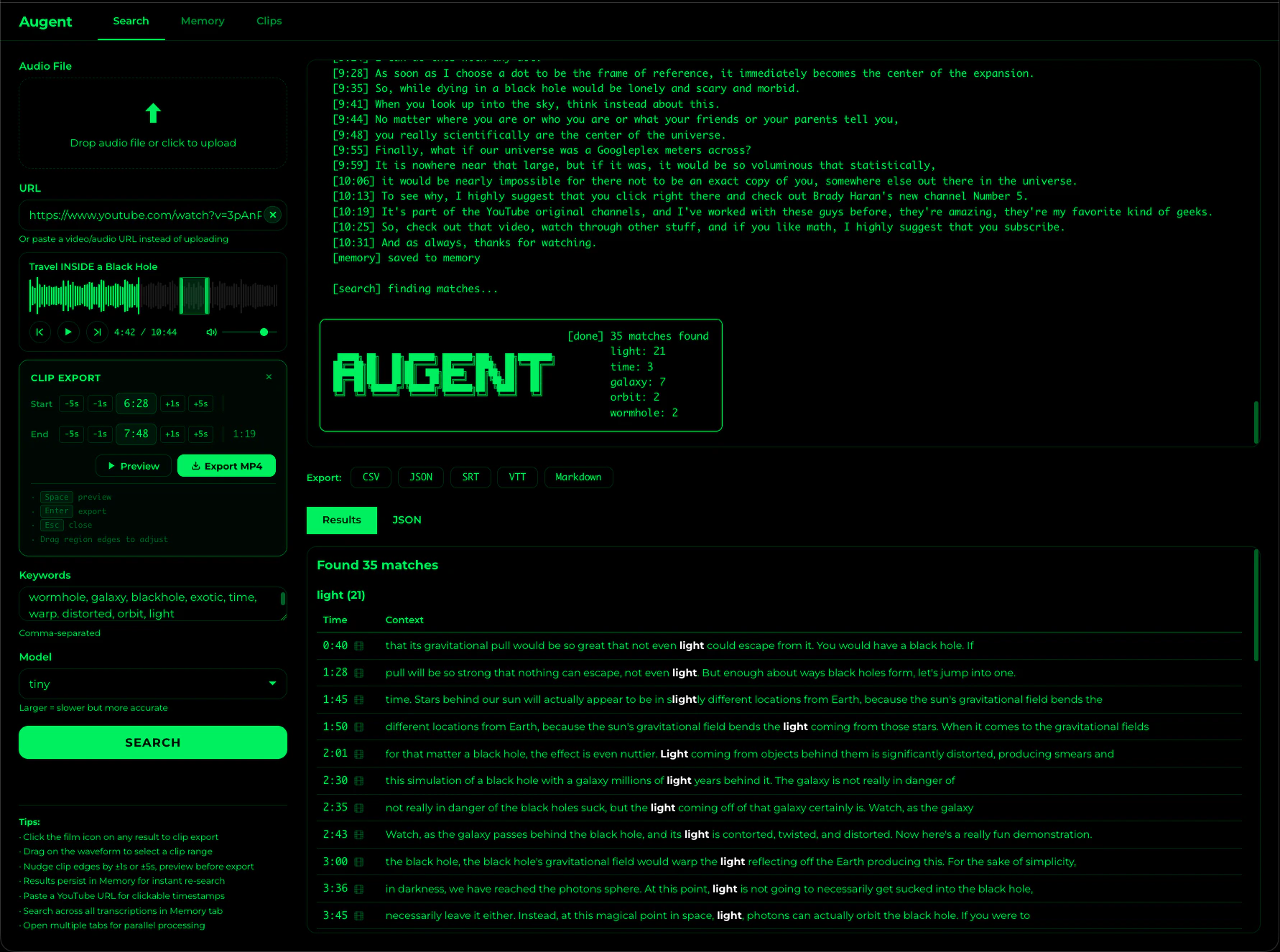
- File upload: Drag and drop or click to upload MP3, WAV, M4A, WEBM, and other audio/video formats
- URL paste: Paste a YouTube or video URL to download and search audio without leaving the browser. Previously downloaded URLs are cached — pasting the same URL again skips the download entirely.
- Waveform & playback: Both file uploads and URL downloads render an interactive audio waveform with play/pause, skip to start/end, and volume controls
- Keywords: Comma-separated, matched against the transcription with surrounding context
- Model selection: Choose from
tiny(fastest, default) throughlarge(maximum accuracy) - Live progress: A spinner animates during downloads and a progress bar tracks transcription in real time
- Export: Results can be exported as CSV, JSON, SRT, VTT, or Markdown
- Clip export: Click the film icon on any search result to visually select and export a video clip — see Clip Export below
Clip Export
Export precise video clips directly from the Web UI. Two ways to create a clip:From search results
Click the film icon on any search result. A green region appears on the waveform centered on that timestamp (±10 seconds). The clip toolbar opens below the waveform.From the waveform
Drag on the waveform to manually select any time range. The clip toolbar appears automatically.Clip toolbar
Once a region is selected, the clip toolbar provides full control:- Start / End displays: exact timestamps for each edge of the clip
- Nudge buttons: ±1s and ±5s buttons on each edge for precise adjustment without dragging
- Duration: live display of the clip length
- Preview: plays only the selected region so you hear exactly what will be exported
- Export MP4: downloads only the selected segment (not the full video) and saves to Desktop
- Keyboard shortcuts:
Spaceto preview,Enterto export,Escto close
YouTube Timestamps
When audio originates from YouTube, all timestamps in search results are automatically hyperlinked to the exact moment in the video. Click any timestamp to jump to that point on YouTube. How it works:- URL mode: Paste a YouTube URL and search. Timestamps are linked automatically.
- File upload mode: If you uploaded a file that was originally from YouTube, a prompt appears in the results: “Know the YouTube URL?” Paste the URL and click Link timestamps to retroactively add clickable links to all results.
- Persistent URLs: Source URLs from any platform (YouTube, Twitter/X, TikTok, Instagram, SoundCloud, etc.) are stored permanently by audio file hash. If the file was ever downloaded via MCP, CLI, or the web UI, any future search of that same file automatically links back to the original source — no manual entry needed.
Memory Explorer
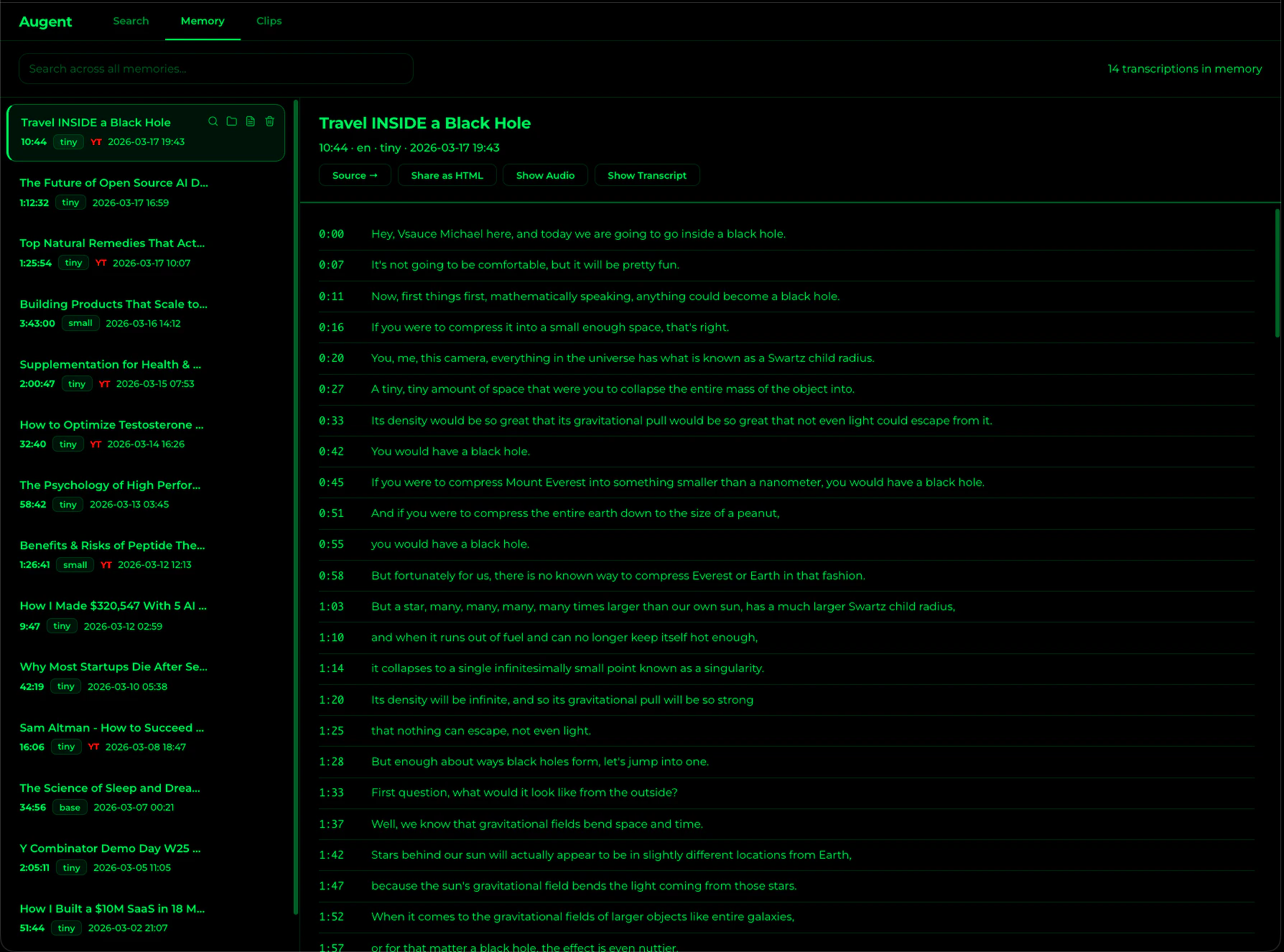
Browse
All stored transcriptions are listed with their title, duration, model size, and date. YouTube-sourced entries are marked with a YT badge.View transcripts
Click any entry to view the full transcript with timestamps. YouTube timestamps are clickable links to the source video.Delete
Each entry has a trash icon. Click it to permanently remove a transcription from memory. A confirmation dialog prevents accidental deletions.Show Audio
Reveals the original audio file in Finder (macOS), the file manager (Linux), or Explorer (Windows).Show Transcript
Reveals the.md transcript file in Finder. Available both on memory cards (document icon) and in the detail view alongside “Show Audio”. Drag the revealed file into a Claude Code session to run the full MCP pipeline (search, chapters, deep search, etc.) on a previously transcribed file.
Re-search from Memory
Click a previously transcribed file in the Memory tab to search it again without re-uploading. The transcription is already cached — only the keyword search runs.Share as HTML
Download a self-contained HTML page of any transcript. The file includes all styling inline — no external dependencies. Share it with anyone, open it in any browser.Cross-memory search
Type in the search bar to search across every transcription in your library by keyword — MCP, CLI, and Web UI transcriptions are all included. Results show matching segments with timestamps and the source transcription title.Use Cases
Browse MCP results visually
After transcribing files via Claude Code or the CLI, open the Web UI to browse your entire library with a visual interface. Every transcription from any tool is already there — click to read, search, share, or delete.Re-search without re-transcribing
Found something interesting hours ago but forgot the exact timestamp? Open the Memory tab, find the transcription, and search it again instantly. No re-upload, no re-transcription — the cached result is used.Share transcripts with non-technical users
Use Share as HTML to export any transcript as a self-contained web page. Send it to a colleague, client, or team member — they open it in any browser, no install needed.Feed stored files back into the MCP pipeline
Use Show Transcript to reveal a.md file in Finder, then drag it into a Claude Code session. This lets you run deep search, chapters, speaker identification, or any other MCP tool on content you transcribed days or weeks ago.
Batch Processing
For parallel processing, open multiple browser tabs to the same URL. Each tab processes independently.Custom Port
8282. Use --port to run on a different one.